
An overview of Kuerate
Kuerate is comprised of various integrated modules designed to offer an end-to-end relationship and networking experience, removed from spam and unwanted outreach.
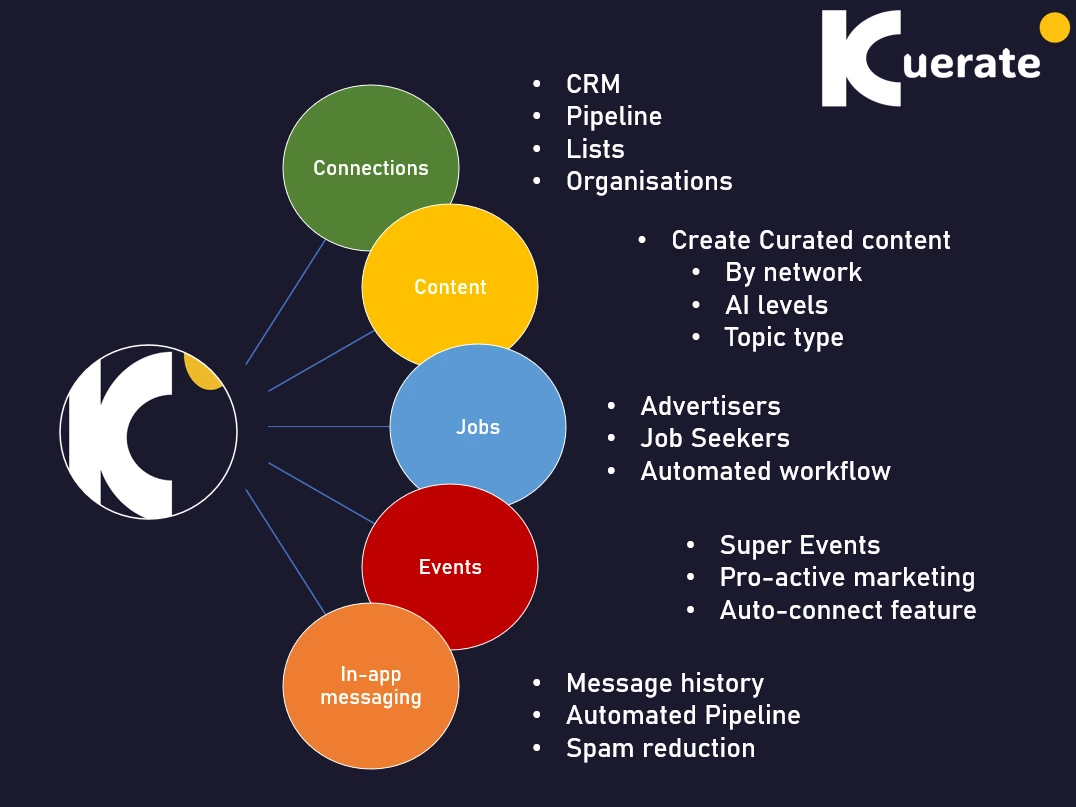
Firstly, if you are familiar with Linkedin, then Kuerate is very similar, but with some additional features:
Although their are various settings, you will notice that most are optional and you can operate with the basic settings, but you may miss holistic integrated benefits
Step 1-Registration
What to consider when registering
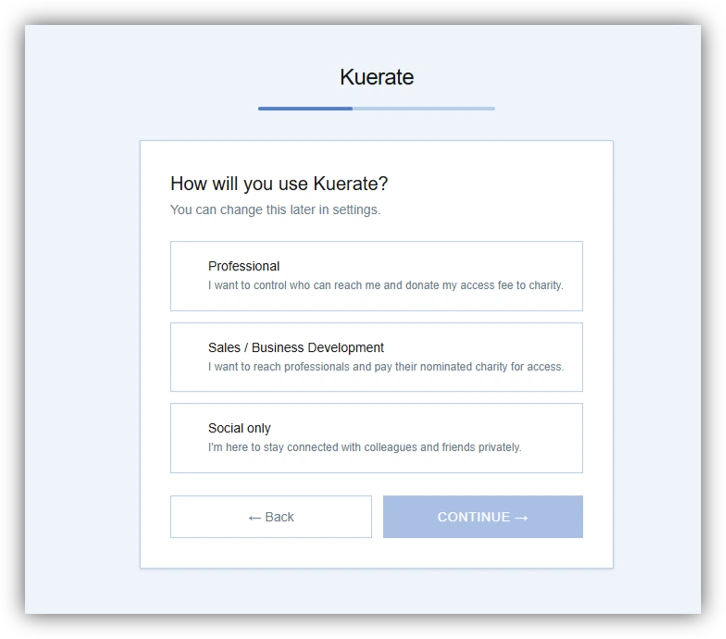
Roles:
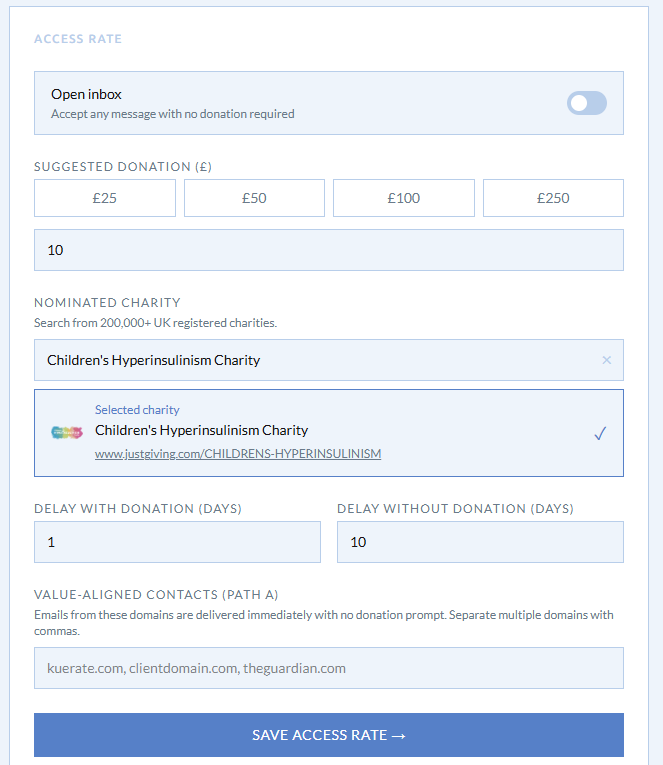
-Professional ( Think, a normal user on Linkedin, with an option to set an "access rate (an amount of your choosing) that people who wish to contact you can donate to your nominated charity. It's the price of reaching you and reduces free spammers )
-Sales/ Business Development (A person who reaches out to others with an emphasis on business development. This person may have to pay a donation to reach those with an access rate)
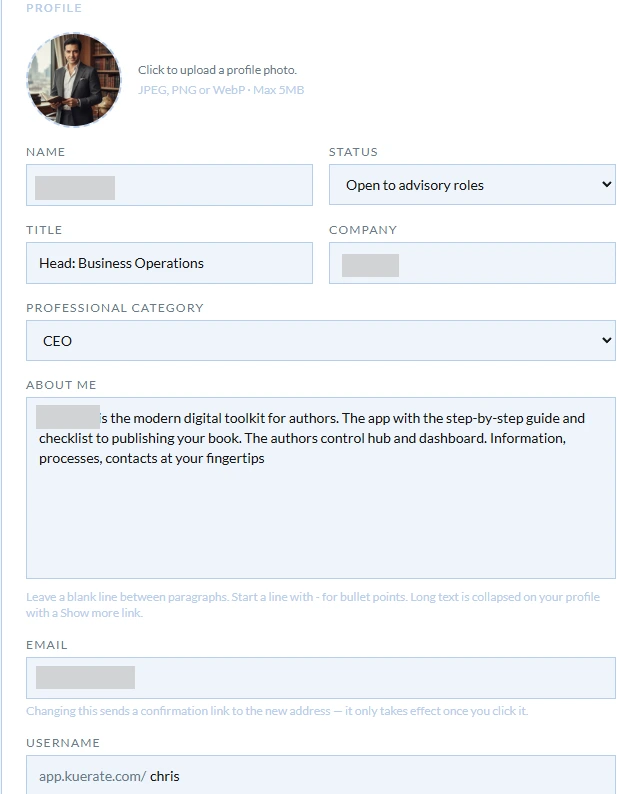
About yourself
Update this section:
You will land on your dashboard.
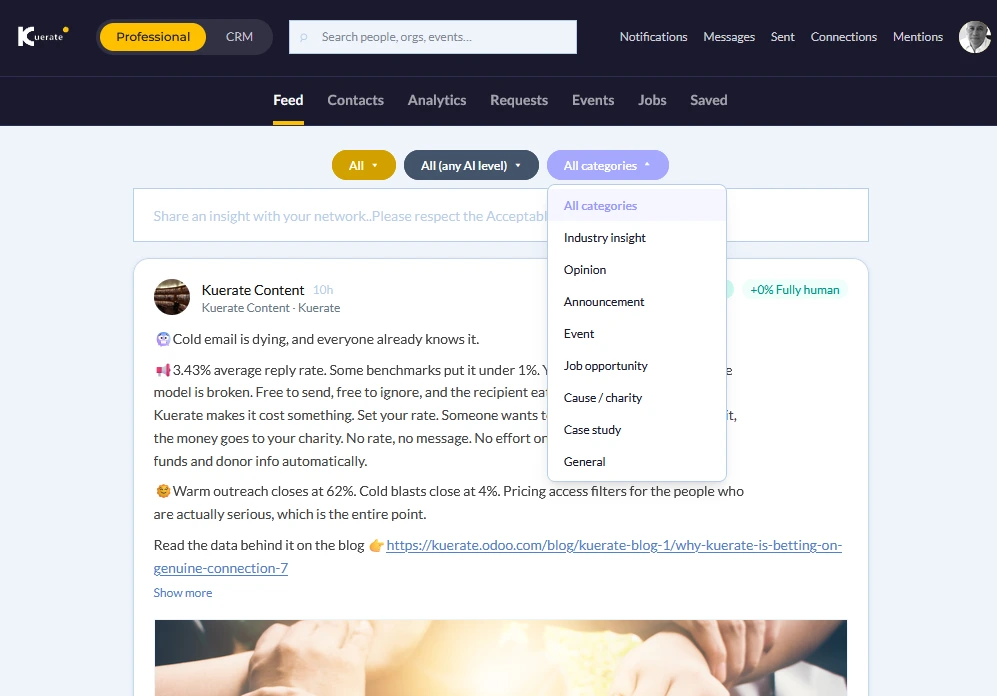
Menu
Professional
-This is where content, events and jobs are found, as well as communicating with connections
CRM
-This is where you can enrich the profiles of your connections and categorise into lists, rating and have historical insight.
Also includes an automated Pipeline to show what stage of interactions you have with a connections.
On the top right, you will see the following:
-Notifications (incoming messages, task reminders or if you have mentioned)
-Messages (New incoming messages)
-Sent (any sent messages)
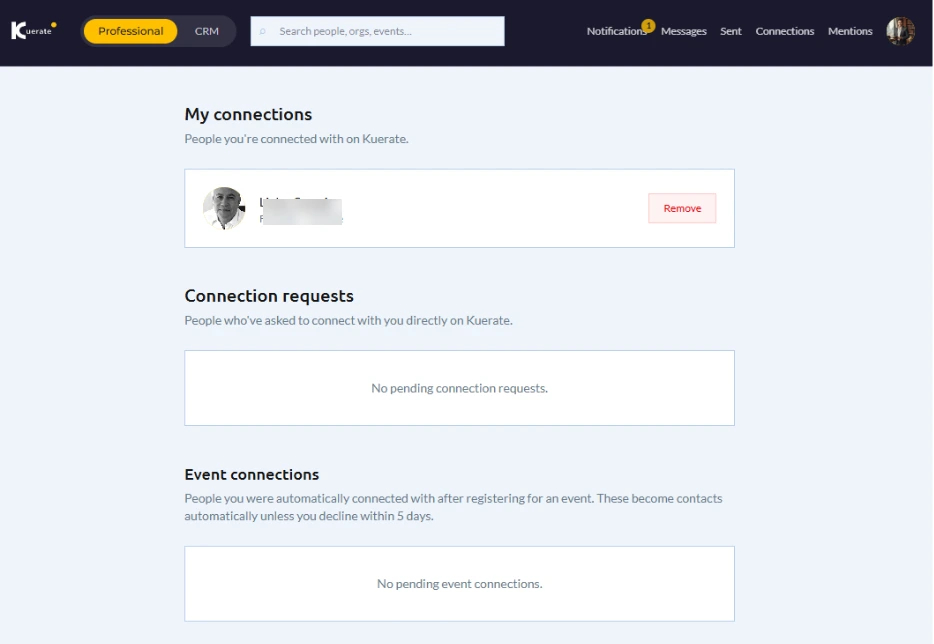
-Connections (Shows all existing Connections, Connection requests and Event Connection)
Settings (see below)
Import from Linkedin
Optional:
You can selectively import your profile and contacts from Linkedin (This will require that you obtain your data from Linkedin beforehand, and it could take 2 days)
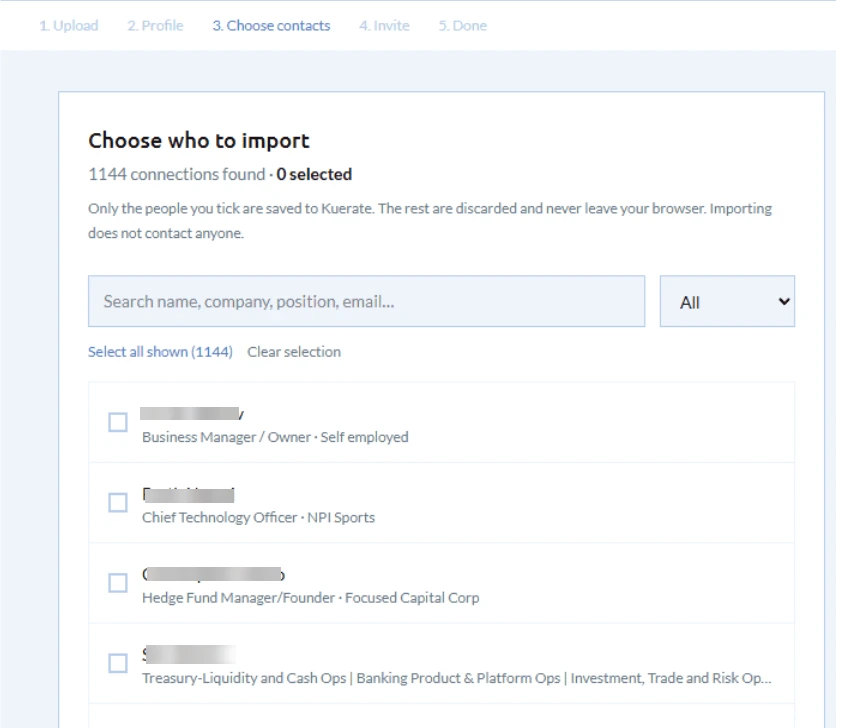
Go to Settings
If you have already imported from Linkedin, then your profile will be updated similar to below:
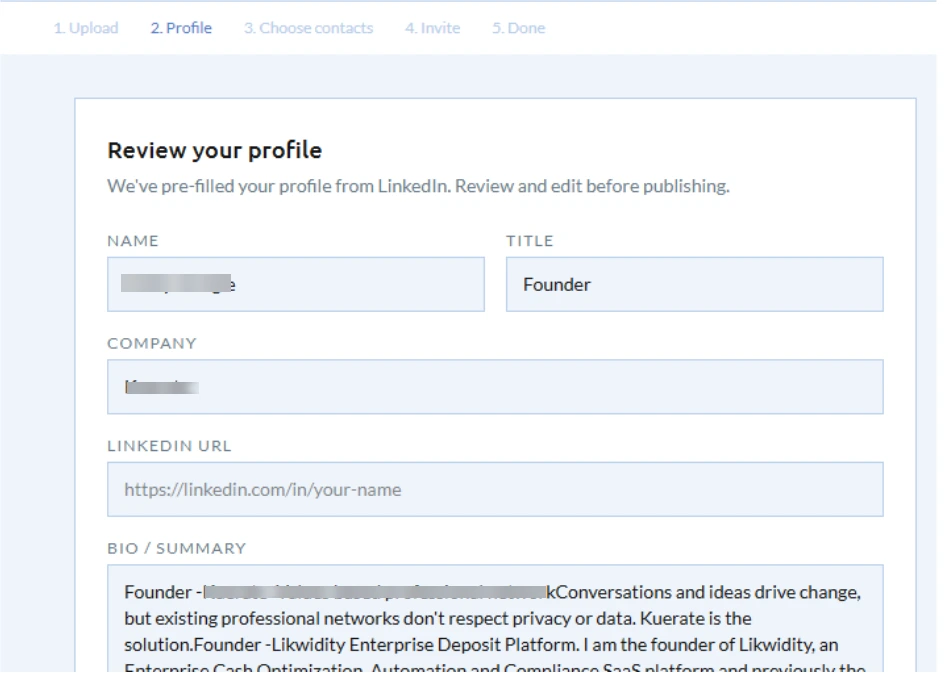
This is where you will
You are now ready to get posting. To complete your profile, following the
Set your interests
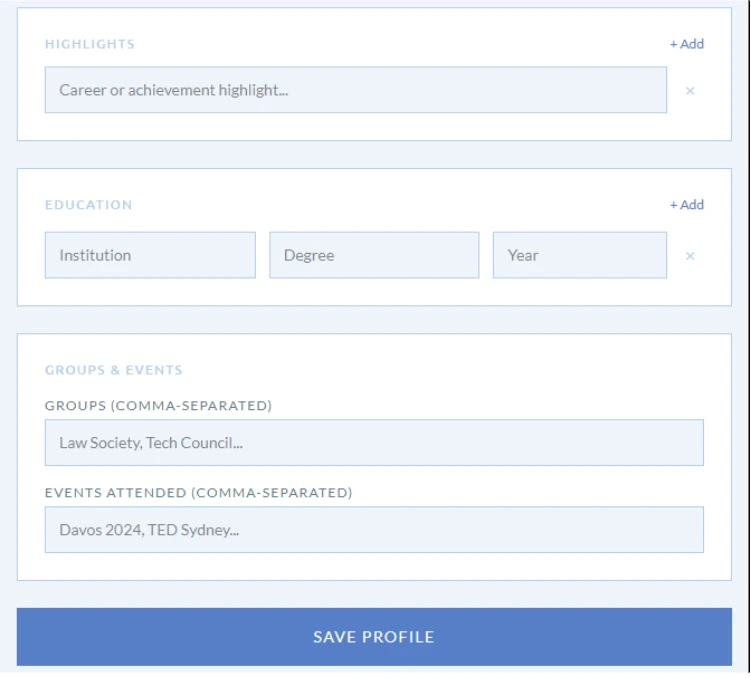
Refine your profile:
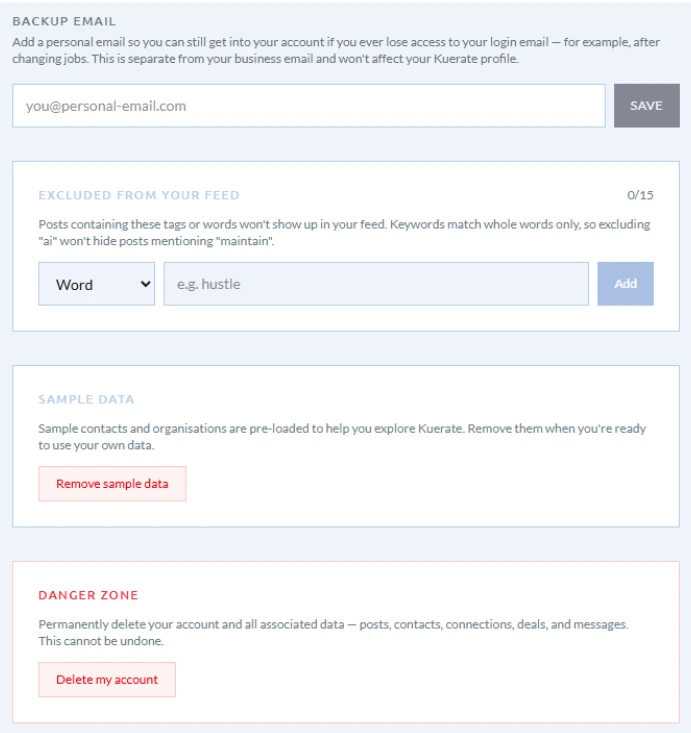
Backup email
Content exclusions
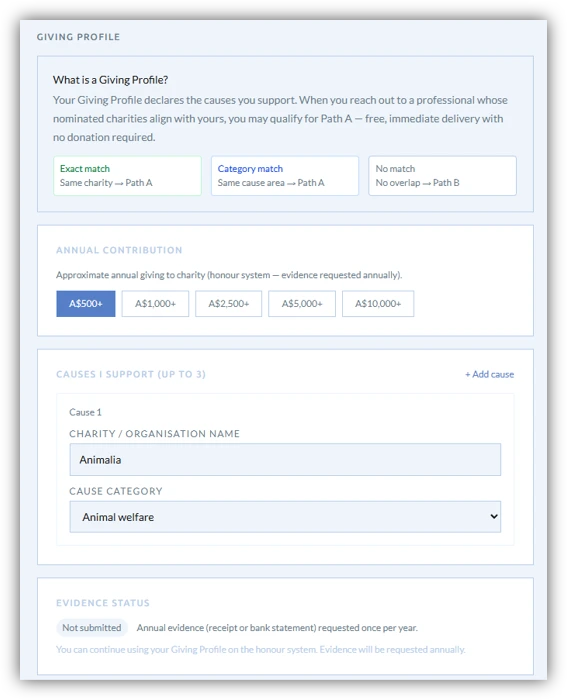
Create a Giving Profile
Choose an Access level
Invite your connections
Now that you have imported your connections, you can now invite those with an email address to join you in Kuerate
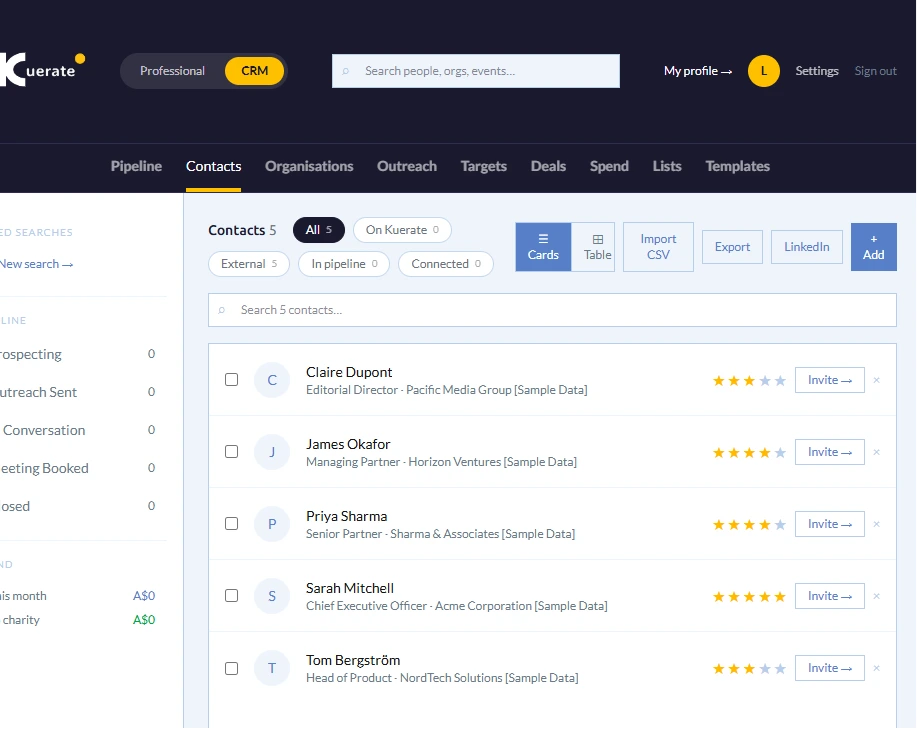
Under Contacts, youhave two views of your connections (Cards and Table)
In Card view, those connections with an email address will have an "Invite" button. Click on the button and an email invitation from you will be sent to your connection.
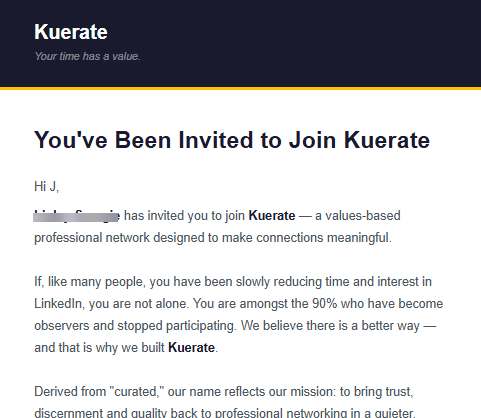
Your connection will receive the following invitation:
Create a New Post
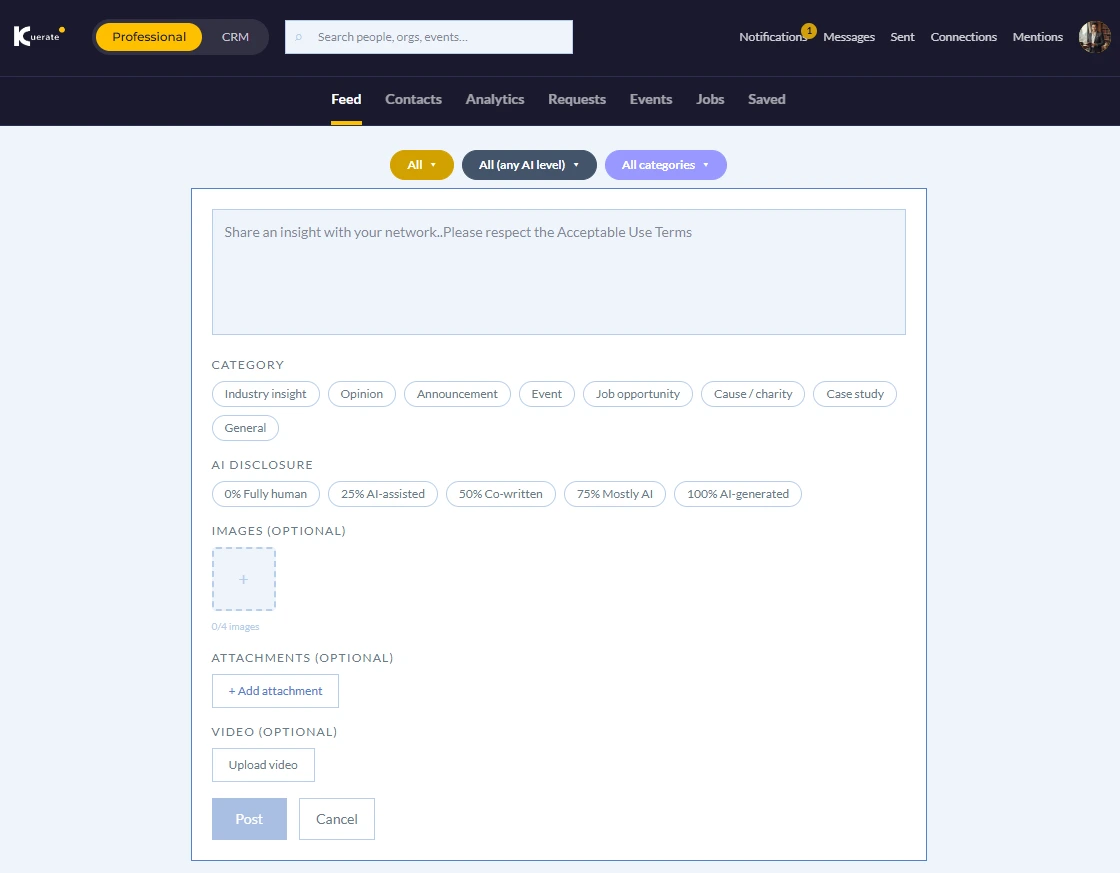
Creating a new Post content is straightforward, same as you would in Linkedin with the following exception: Kuerate requires all posts to be categorised before posting. These are:
-Category (Kuerate includes the follwing categories; Industry Insight, Opinion, Case study etc)
-AI Disclosure (User must provide a level of AI assistance)
-
Easy Share into Linkedin and others
You can create all of your content first in Kuerate and if you wish to share in other mediums, you can simply do:
-Share Link (into X,
-Copy into Linked (The post will be copied format ready for Linkedin)
